Blogs

SpringSource Blog

Grails tooling improvements in SpringSource Tool Suite 2.3.3 M2

aclement

The recently released STS 2.3.3 M2 introduced a series of enhancements to our Grails support for Eclipse. In this article I'll be discussing what you can expect to find if you try it out (grab it here: SpringSource Tool Suite).

Groovy-Eclipse

The grails tools actually build on and extend the Groovy-Eclipse support, which is developed by the same team at SpringSource. Earlier this year the Groovy-Eclipse tools won 'Best Open Source Developer Productivity Tool' at Eclipse-Con 2010. You can read more about the latest enhancements in the recent Groovy-Eclipse 2.0.2 release here: New and Noteworthy. I'm not going to focus on Groovy-Eclipse here, but some highlights from that release were:

  • refactoring support: now supporting extract method, extract constant, extract local variable
  • improvements in code formatting and indentation

Now, onto Grails!

Getting a new perspective

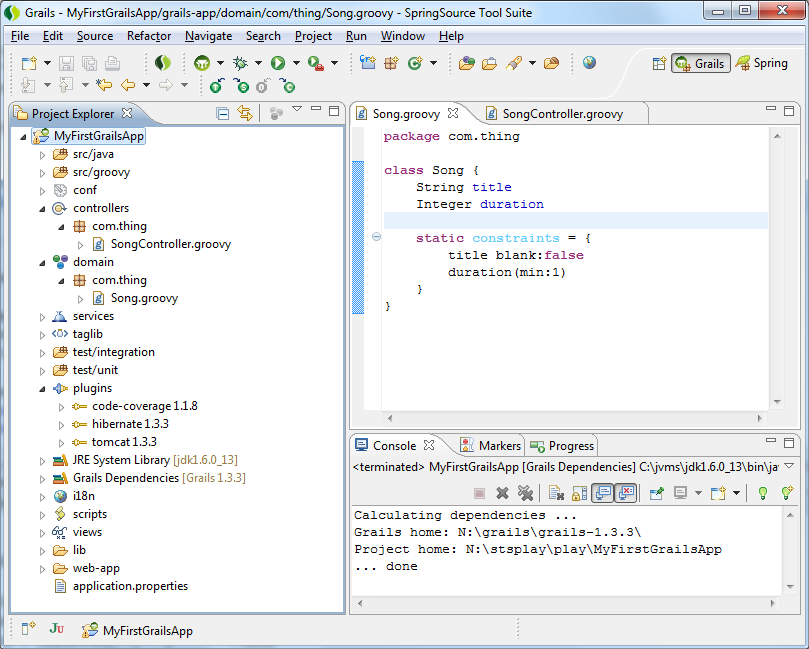
There is now a new Grails perspective to better organize the views and widgets we have been adding to STS. You can open the perspective in the normal way (Window>OpenPerspective>Grails). In the new perspective the first thing to notice is that the Eclipse project explorer is open, rather than the package explorer. The project explorer is using a custom content provider that shows a view of a grails project that should be more familiar to a grails developer:

Grails Perspective

New labels and icons are in place for the groups of similar entities: domain objects, controllers, views, etc. However the biggest change is the new plugins folder. Previously when working with a grails project the plugin dependencies were tricky to see in the UI, being hidden in the classpath container and via some Eclipse linked source folder entries. Now in the project explorer it is much more obvious what the application dependencies are.

Also, related to plugins, we have a new Grails Plugin Project wizard. This is very similar to the Grails Project Wizard, but instead of running create-app, it will cause the create-plugin command to run. With this new wizard and the new support we have for local (inplace) plugins, it is much easier to develop your application following a plugin oriented architecture.

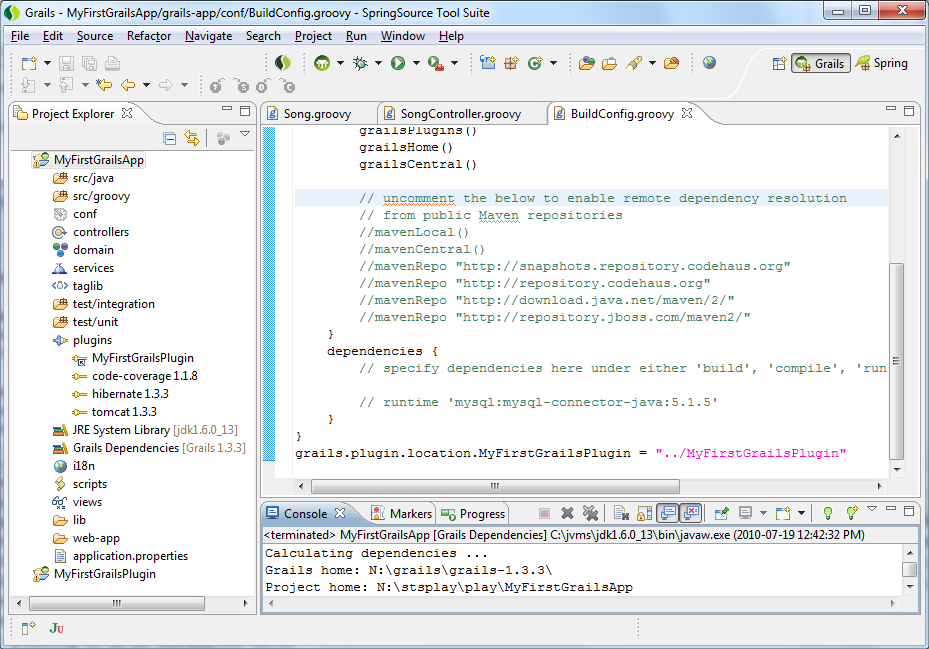
Here is an example using a local/inplace plugin configuration:

InplacePlugins

In that shot you can see two Eclipse projects. The main grails application 'MyFirstGrailsApp' and a plugin project 'MyFirstGrailsPlugin'. By editing the BuildConfig.groovy in the main application a dependency has been expressed onto the plugin project:

grails.plugin.location.MyFirstGrailsPlugin="../MyFirstGrailsPlugin"

After specifying that dependency and running a 'Refresh Dependencies' against the application, the 'plugins' folder has updated (see the above screenshot) with a new entry for my new dependency and a different kind of icon which indicates that it is a different kind of plugin dependency.

In Command

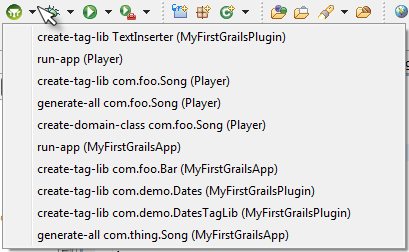
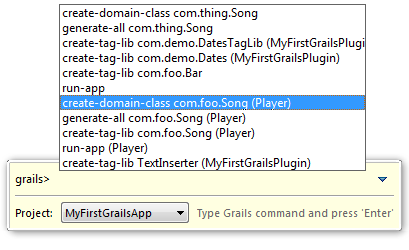
For enabling users to be more productive, the command prompt has been enhanced. It now allows project selection, and can be pinned in place (so it isn't accidentally closed), but most importantly it now has a history function. The history enables you to quickly re-run the same command or run similar commands. For accessing the prompt you can use the same 'claw' keypress (Alt+Shift+Ctrl+G on my windows machine), or if your hand doesn't bend that way you can use the new grails icon on the grails perspective toolbar to launch it. The pulldown next to the grails icon provides another route to accessing the command history, showing the commands and the project against which they were run:
history

Selecting any entry in the pulldown history will open the prompt with that command pre-filled, it can be edited prior to execution or simply re-run. If the prompt is open then the other route to accessing the history is simply to press Up-Arrow:
grailsprompt

To speed up navigation around your applications, STS now includes a number of new keyboard shortcuts for grails projects. When in a controller, service, taglib or domain class, you can use Alt+G then one of D, C, S, T to jump to the related domain class/controller/service/taglib in the editor. Jumping is also possible by clicking the new icons on the toolbar:
jumping

Managing plugins

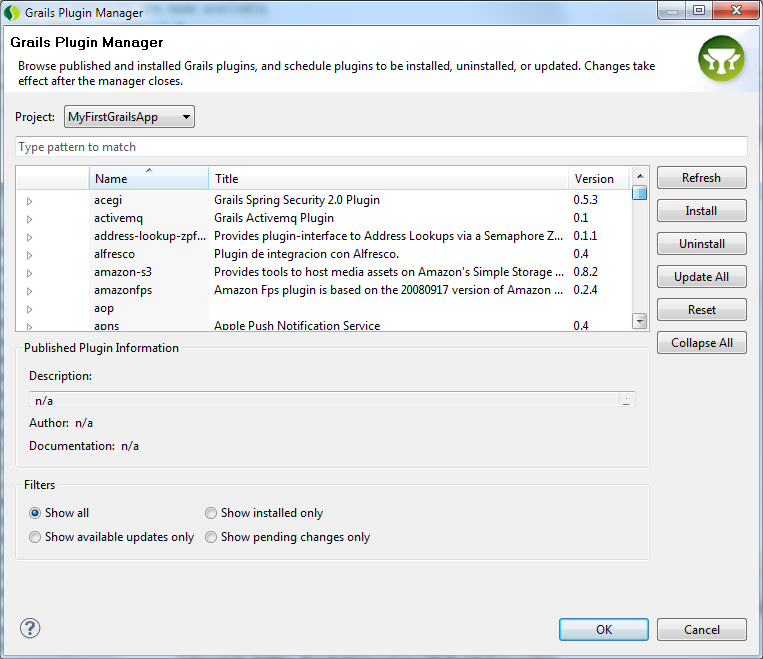
To make it easier to organize the plugins a project is using we have a new grails plugin manager. Rather than trying to remember the name of the plugin you want, you can open up the manager (through the context menu RightClick>Grails Tools>Grails Plugin Manager..., or via keypress Alt+G,M) and browse the available plugins:
GrailsPluginManager

The plugin manager enables you to:

  • install new plugins
  • update existing plugins
  • uninstall plugins

It also provides the detailed descriptions and any available links to documentation.

The list of available plugins is cached but you can press Refresh to ensure you are working with the latest list. By default the manager is showing you all available plugins, but as you scroll down you will see what you already have installed (installed plugins have a green tick against them). Importantly if any of the installed plugins have had an update released, the UI will indicate that to you and you can update if you wish (a blue up-arrow icon indicates an update is available). Due to the act of installing/uninstalling a plugin not being instantaneous (it takes a few moments for grails to actually do it), as you interact with the UI and mark plugins for install/update/etc you are basically scheduling a series of grails commands to run. The changes you have requested won't actually execute until you press the OK button to close the manager. If at any time you think you've messed up you can cancel the manager (or reset the manager) and your project will be in its original state.

GSPs

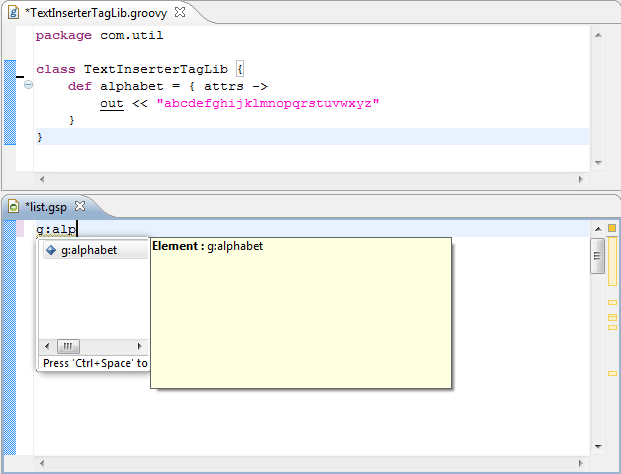
As well as many minor fixes, gsp editing has been improved by the addition of code assist for taglibs:
gsptags

Here you can see I have a new taglib called TextInserter defining a tag alphabet, in the gsp editor I can code complete on that tag. (following the current model for jsp editing, the code assist Ctrl+Space must be performed prior to typing).

Dynamic finders

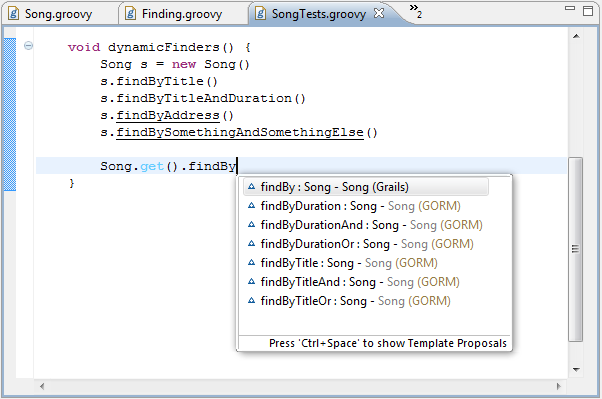
This doesn't really fit into the sections above but is a nice improvement. The groovy editor will now recognize the usage of dynamic finders and provide them in code assist:
dynamicfinders

Here you can see against my Song object (which only has a title and duration) any attempt to use invalid finders is marked with underlining in the editor, and code assist is providing the valid choices.

That's it! Quite a lot of change for STS M2 – go and grab a copy now and try it out: SpringSource Tool Suite

Any feedback is appreciated. Improvements to debugging is something we are going to be looking at in the near term, but if you wish to raise new requirements on comment on existing issues, please see the STS issue tracker.

Similar Posts

Share this Post
  • Digg
  • Sphinn
  • del.icio.us
  • Facebook
  • Mixx
  • Google Bookmarks
  • DZone
  • LinkedIn
  • Slashdot
  • Technorati
  • Twitter
 

23 responses


  1. Wow! Is all I can say though I have been using Textmate exclusively. I once tried STS and left it as at the time it struggled with dependency issues and didn't offer much.As things stands now, I'll have to definitely give it another shot. The Grails support is now very tempting. Thank for all the hard work you guys are putting into this.


  2. Great news! Thanks for the nice features. This should make grails development much easier.
    Is there a way to just upgrade an existing STS 2.3.2 release from within the IDE?


  3. Hi Malte,

    In the install instructions at: http://dist.springsource.com/release/STS/doc/STS-installation_instructions-2.3.3.M2.pdf – there is a section on installing from a milestone update site. You might be able to use that to install the new versions into your existing STS 2.3.2. (I haven't tried it though…). If you can I'd just grab the updates to the grails plugins plus related dependencies.

    Andy


  4. I haven't tried it yet, but it looks great!

    I would like to ask whether you plan to contribute this plugin to the eclipse community so that I can use it from pure eclipse as well (and not only as part of STS)?

    Thanks,
    Ivan


  5. Awesome! Have been working with STS for a few months now and this release has almost every comfy feature I have missed.


  6. @Ivan

    You can already install these pieces of STS into your own eclipse if you wish. Just look at the installation instructions I referred to above ( http://dist.springsource.com/release/STS/doc/STS-installation_instructions-2.3.3.M2.pdf ), it is just a matter of defining an update site and installing them.

    Andy


  7. Hi,
    I gave it a try. But I have an issue. When trying to install the Grails Support plug-in from the Dashboard > Extensions screen, I have this error message:
    The following connectors are not available: Grails Support. Proceed with the installation anyways?

    It looks like the Grails plug-in is not found.

    Did I do something wrong?


  8. Hi Antoine,

    I saw someone on the STS forum reported this, he has also written about a workaround:
    http://forum.springsource.org/showthread.php?t=92390

    Andy


  9. @Ivan

    You can already install these pieces of STS into your own eclipse if you wish. Just look at the installation instructions I referred to above ( http://dist.springsource.com/release/STS/doc/STS-installation_instructions-2.3.3.M2.pdf ), it is just a matter of defining an update site and installing them.

    Andy


  10. I can confirm that updating from 2.3.2 works perfectly using the two update sites mentioned in the pdf above. I like that the new version has a much better handling of in-place plugins and plugins in general. I also gave the new grails-view a shot and I think it's really great. I have one problem however: I can see no way to access the scaffolding files from here. Am I missing something?


  11. Thank you very much, it helped. The final solution, for me with 2.3.3 M2 was to add the update site http://dist.springsource.com/milestone/TOOLS/update/e3.6 which was not included by default.


  12. @Markus

    Sounds like a bug that the project explorer is hiding other subfolders in the src area – can you give me the exact path of a piece of scaffolding you are trying to access?

    Andy


  13. Hey Andy,

    thanks for your response. The "hidden" folder is:

    \workspace\projectName\src\templates\scaffolding and in this folder e.g. Controller.groovy or gsp files like show.gsp.

    Markus


  14. Good job!!!It is amazing!!


  15. Wow, I really like the new Grails Perspective. It's a big time effort! Andy, thank you for the hint!


  16. I really liked the new perspective too – until I updated to 2.3.2.RELEASE today and had all the nice features taken away :( . I tried it again this evening as i first blamed my windows somehow to up. Now I tried it again (following the install instructions for the release version), so did a colleague of mine, all with the same result. Additionally the groovy console disappeared which botheres me a little bit more because it made calling grails commands somewhat easier.

    What happend to these features?


  17. Hi Gunnar,

    Not quite sure what you mean by 'all the features' – you only reference the groovy console in your comment? Or do you mean everything in my article?

    You mention the 2.3.2.RELEASE, which does not have the new perspective – my article was about 2.3.3 (2.3.3 has now been rebranded as 2.5.0 due to all the extra stuff it now contains).

    The groovy console was removed a long time ago in groovy-eclipse, then a shortcut was readded in a more recent version to allow it to be activated again. I am on 2.5.0.M3 and with a groovy file in my editor I can rightClick>RunAs>Groovy Console and open the console containing it. The latest STS is here:
    http://www.springsource.com/landing/best-development-tool-enterprise-java

    To get the groovy console to appear again you could just update to a dev build of groovy-eclipse, if you don't want to move to the latest STS, but you may find the grails tools in that older version of STS (2.3.2.RELEASE) don't work 100% with the most recent groovy-eclipse. I'd suggest moving to 2.5.0.M3 if you want the best groovy/grails support.

    Andy


  18. Thanks for the quick response and clarification. I just noticed the little difference myself and am already installing 2.5.0.M3 as i write X) …Is there somewhere a delete button for responses?


  19. I was wondering where to post this, hope this is close enough.

    I installed SpringSource Tool Suite Version: 2.5.1.RELEASE (Build Id: 201011111000) yesterday and I like the Grails perspective too!

    However, I found that Run As | 4 Grails command… refers to some function called Edit configuration… I won't execute any Grails command as it says "A configuration with this name already exists"

    When I tried to start a Groovy shell instead nothing happens

    Joris


  20. @Joris

    RunAs… GrailsCommand is for defining your grails command. What do you want to run? create-domain-class? run-app? In the edit configuration that appears you would type the command in the section labeled 'grails>' and give it a name, you then have a shortcut for running that command. You can't have two with the same name so ensure your names are unique.

    However, there are better ways to run commands. Bring up the grails command prompt (press the 'grails' icon on the toolbar) and type your command into there. (The grails command prompt can be opened via keypresses too Alt Shift Ctrl G, or in the context menu for the project).

    The best place to ask about STS Grails support is the STS forum:
    http://forum.springsource.org/forumdisplay.php?f=32

    Andy


  21. I don't know why but the code complete for dynamic finders and things doesnt work for me. I have installed STS as eclipse plugin and not downloaded the STS distribution directly from spring source. can this be the issue ?


  22. Hello,
    I use sts 2.6.0.RELEASE and can't find the Groovy Console.Can You please tel me how can I use it from within sts??
    Thank You und advance.


  23. @Gerald

    The console is launched by STS right now (rather than integrated). Select the project, rightclick>RunAs>GroovyConsole.

2 trackbacks

Leave a Reply